FAQ about site content
Page content displays incorrectly
Webpages might display incorrectly. For example, garbled characters may display instead of letters or the page formatting may be broken.
Update Yandex Browser
Errors may also occur if you're using an outdated version of Yandex Browser. To find out what version of Yandex Browser you're using, click → Help → About Yandex Browser or enter browser://help in the SmartBox.
If an update is available, install it and restart Yandex Browser.
Change the encoding
-
Click → Advanced → Text encoding.
-
Select Unicode (UTF-8) or Cyrillic (Windows-1251) (on Windows).
Disable utilities
The most frequent reason for incorrect site display is using a proxy server or an additional firewall (in addition to the standard Windows firewall). Temporarily disable them to find out if they affect the display of site pages. We do not recommend using utilities that cause display errors.
Turn off extensions
-
Click → Extensions and turn off all extensions.
-
Restart Yandex Browser: close it by pressing Ctrl + Shift + Q (on Windows and Linux) or ⌘ + Q (on macOS), then open it again.
-
Clear your cache so Yandex Browser doesn't load a copy of the page that was saved earlier.
-
If this solves your problem, go through your extensions and turn them back on until you find the one that causes the problem. Restart Yandex Browser every time.
-
Disable this extension. You may want to let the developers know about the problem.
Refresh page
-
Open the page where the problem with markup is occurring.
-
Press F5 (on Windows and Linux) or ⌘ + Shift + R (on macOS).
Clear data
Delete all cookies for that page:
-
Click → Settings → Websites.
-
Scroll down the page and click Advanced site settings.
-
In the Cookies section, click Cookies and site data.
-
Hover over the desired site and click the Remove link that appears to the right of the site name. All cookies of this page will be deleted.
Clear cache:
-
Click → History → Clear history or press Ctrl + Shift + Del (on Windows) or Shift + ⌘ + Backspace (on macOS).
-
Under Clear history, select the time period that you want to delete the cache for.
-
Select the Files stored in cache option.
-
Deselect all other options (if you want to clear only the Yandex Browser cache).
-
Click Clear.
Disable hardware acceleration
- Click → Settings → System.
- Under Performance, deselect Use hardware acceleration if possible.
- Close the Browser with a keyboard shortcut Ctrl + Shift + Q (on Windows and Linux) or ⌘ + Q (on macOS).
- Restart the browser to apply these changes.
Disable ad blocking
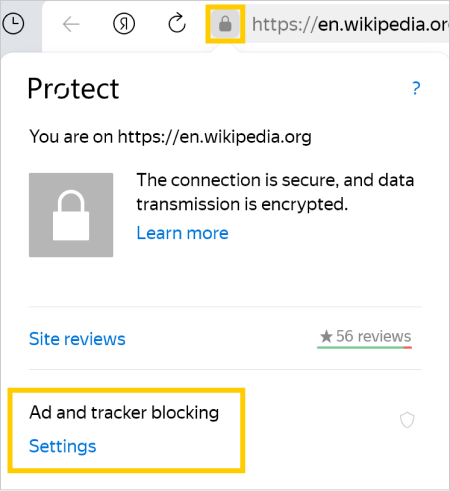
If pages aren't displayed correctly (images don't load, content is missing, the layout of page elements is broken), unblock ads for this page:
-
Tap .
-
In the Ad and tracker blocking section, click Settings.
-
In the Privacy window, disable the Block ads on this site option.
Disable DNS encryption
-
In the upper-right corner click → Settings.
-
Go to the Security tab at the top of the page.
-
In the Secure connection section, disable the Use a secure DNS server option.
If this doesn't solve the problem, enable the option again and select a different server from the list (for example, AdGuard public DNS servers without filters).
Delete fonts
If the page contains text with a modified font:
- Right-click the text → Inspect element.
- Find the font name in the
font-familyattribute. - Go to Start → Control Panel → Fonts → Preview, delete, or show and hide fonts.
- Next to the font you want to delete, click → Delete.
The downloads toolbar, suggestions, or dialog boxes are missing
Exit full-screen mode
Make sure that Yandex Browser isn't in full-screen mode because some panels are hidden in this mode. Press F11 to exit full screen.
Show browser panels
- Right-click the empty space next to the tabs. A menu will open.
- Select Bookmarks bar and any other bars you need.
Disable problematic extensions
Some extensions, such as VPNs and ad blockers, may affect how interface elements are displayed.
-
Click → Extensions and turn off all extensions.
-
Restart Yandex Browser: close it by pressing Ctrl + Shift + Q (on Windows and Linux) or ⌘ + Q (on macOS), then open it again.
-
Clear your cache so Yandex Browser doesn't load a copy of the page that was saved earlier.
-
If this solves your problem, go through your extensions and turn them back on until you find the one that causes the problem. Restart Yandex Browser every time.
-
Disable this extension. You may want to let the developers know about the problem.
Reset experimental features
- In the SmartBox, enter
browser://flags. - Press Enter.
- In the upper-right corner, click Reset all. This will reset all experiments to their default state.
If this didn't help, write to us.
Site features don't work
Check your network status
Network restrictions may prevent you from accessing the site. Those might be caused by software (antivirus programs, firewalls, or viruses), or network settings on the provider side (such as proxy servers).
Check whether you can access the site on another computer from a different network to make sure that the site works. If the site fails on your computer only, we recommend contacting your system administrator or your provider's support. If you can't open the site only in Yandex Browser, temporarily disable your antivirus or firewall. They might be blocking the connection.
Refresh page
Press Ctrl + F5 (on Windows) or ⌘ + R (on macOS) to refresh the page and its cache.
Clear data
Delete all cookies for that page:
-
Click → Settings → Websites.
-
Scroll down the page and click Advanced site settings.
-
In the Cookies section, click Cookies and site data.
-
Hover over the desired site and click the Remove link that appears to the right of the site name. All cookies of this page will be deleted.
Clear cache:
-
Click → History → Clear history or press Ctrl + Shift + Del (on Windows) or Shift + ⌘ + Backspace (on macOS).
-
Under Clear history, select the time period that you want to delete the cache for.
-
Select the Files stored in cache option.
-
Deselect all other options (if you want to clear only the Yandex Browser cache).
-
Click Clear.
Turn off extensions
To see if any extensions are affecting Yandex Browser, open the site in Incognito mode. If the issue doesn't persist in Incognito mode, try identifying the extension that causes the error.
-
Click → Extensions and turn off all extensions.
-
Restart Yandex Browser: close it by pressing Ctrl + Shift + Q (on Windows and Linux) or ⌘ + Q (on macOS), then open it again.
-
Clear your cache so Yandex Browser doesn't load a copy of the page that was saved earlier.
-
If this solves your problem, go through your extensions and turn them back on until you find the one that causes the problem. Restart Yandex Browser every time.
-
Disable this extension. You may want to let the developers know about the problem.
Turn the hardware accelerator on or off
- Click → Settings → System.
- Under Performance, find the option Use hardware acceleration if possible. If the option is enabled, try disabling it and then restarting your browser. If the option is disabled, enable it instead and restart your browser.
Images are not displayed
Clear data
Delete all cookies for that page:
-
Click → Settings → Websites.
-
Scroll down the page and click Advanced site settings.
-
In the Cookies section, click Cookies and site data.
-
Hover over the desired site and click the Remove link that appears to the right of the site name. All cookies of this page will be deleted.
Clear cache:
-
Click → History → Clear history or press Ctrl + Shift + Del (on Windows) or Shift + ⌘ + Backspace (on macOS).
-
Under Clear history, select the time period that you want to delete the cache for.
-
Select the Files stored in cache option.
-
Deselect all other options (if you want to clear only the Yandex Browser cache).
-
Click Clear.
Turn off extensions
Some extensions (such as ad blockers) restrict the display of page content, including videos and images.
-
Click → Extensions and turn off all extensions.
-
Restart Yandex Browser: close it by pressing Ctrl + Shift + Q (on Windows and Linux) or ⌘ + Q (on macOS), then open it again.
-
Clear your cache so Yandex Browser doesn't load a copy of the page that was saved earlier.
-
If this solves your problem, go through your extensions and turn them back on until you find the one that causes the problem. Restart Yandex Browser every time.
-
Disable this extension. You may want to let the developers know about the problem.
Enable the "Image display" option
-
Enable image display: → Settings → Websites.
-
Scroll down the page and click Advanced site settings.
-
In the Image display section, select Allowed.
-
Clear the Yandex Browser cache.
-
Refresh the page to make sure the problem has been resolved.
Remove the image from the blacklist
-
Click → Settings → Tools.
-
Under Ad blocker, click Blocked ads.
-
Hover your mouse over the address of the desired image and click Remove.
-
Refresh the page to make sure the problem has been resolved.
The browser ruins the color rendition
Change your monitor's color profile settings
-
In the SmartBox, enter
browser://flags. -
In the search bar, enter Force color profile, Color Profile, HDR.
-
Set these features to Default or Default color space.
-
In the upper-right corner, click Reset all.
-
Restart Yandex Browser. Click → Close Yandex Browser, or press Ctrl + Shift + Q (on Windows) or ⌘ + Q (on macOS), then open the browser again.
Disable hardware acceleration
- Click → Settings → System.
- Under Performance, deselect Use hardware acceleration if possible.
- Close the Browser with a keyboard shortcut Ctrl + Shift + Q (on Windows and Linux) or ⌘ + Q (on macOS).
- Restart the browser to apply these changes.
Disabling JavaScript support
Note
By default, JavaScript support is enabled.
To prevent websites from using JavaScript:
- Open a page on the site.
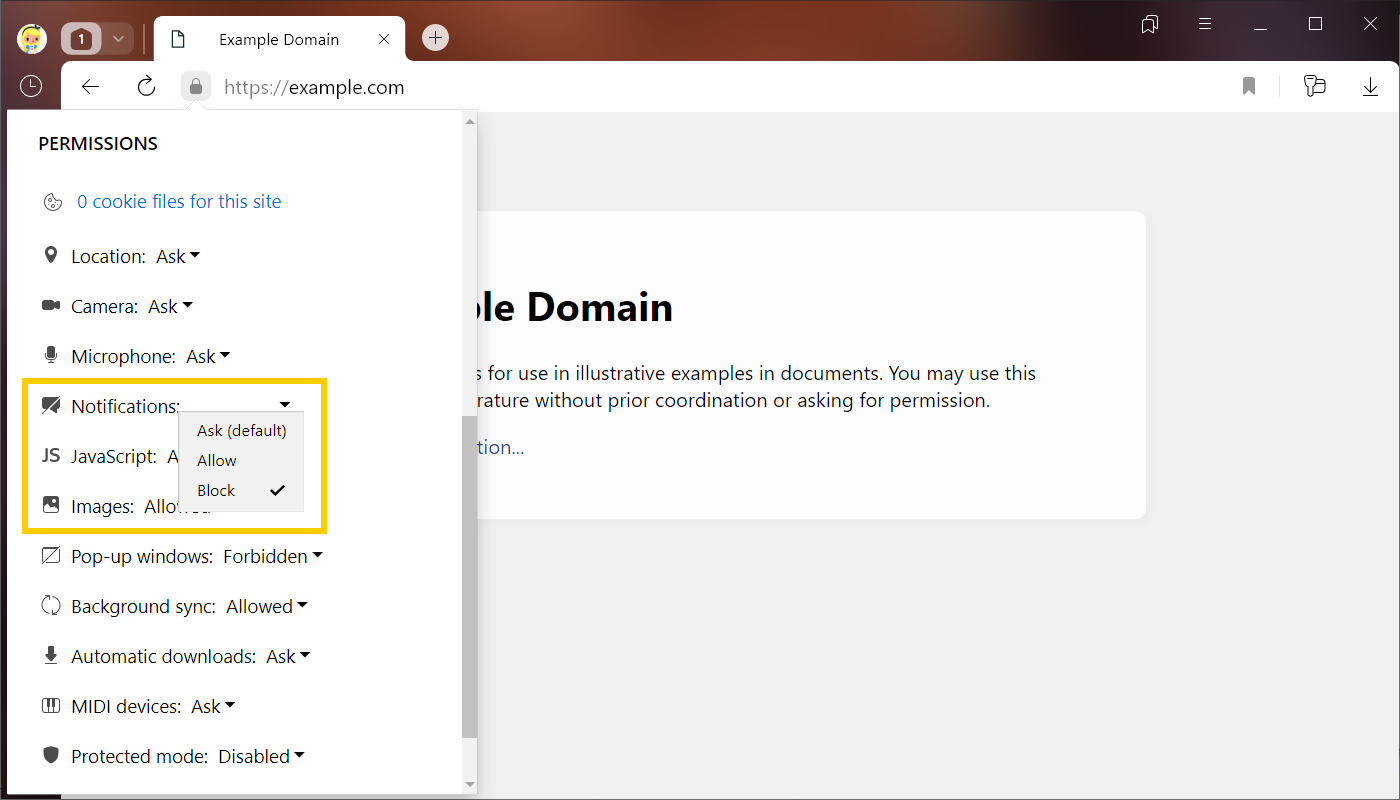
- In the SmartBox, click the connection status icon.
- The Protect panel opens. In the connection status section, click Learn more.
- In the Permissions section, find the JavaScript field and select Block from the list.
-
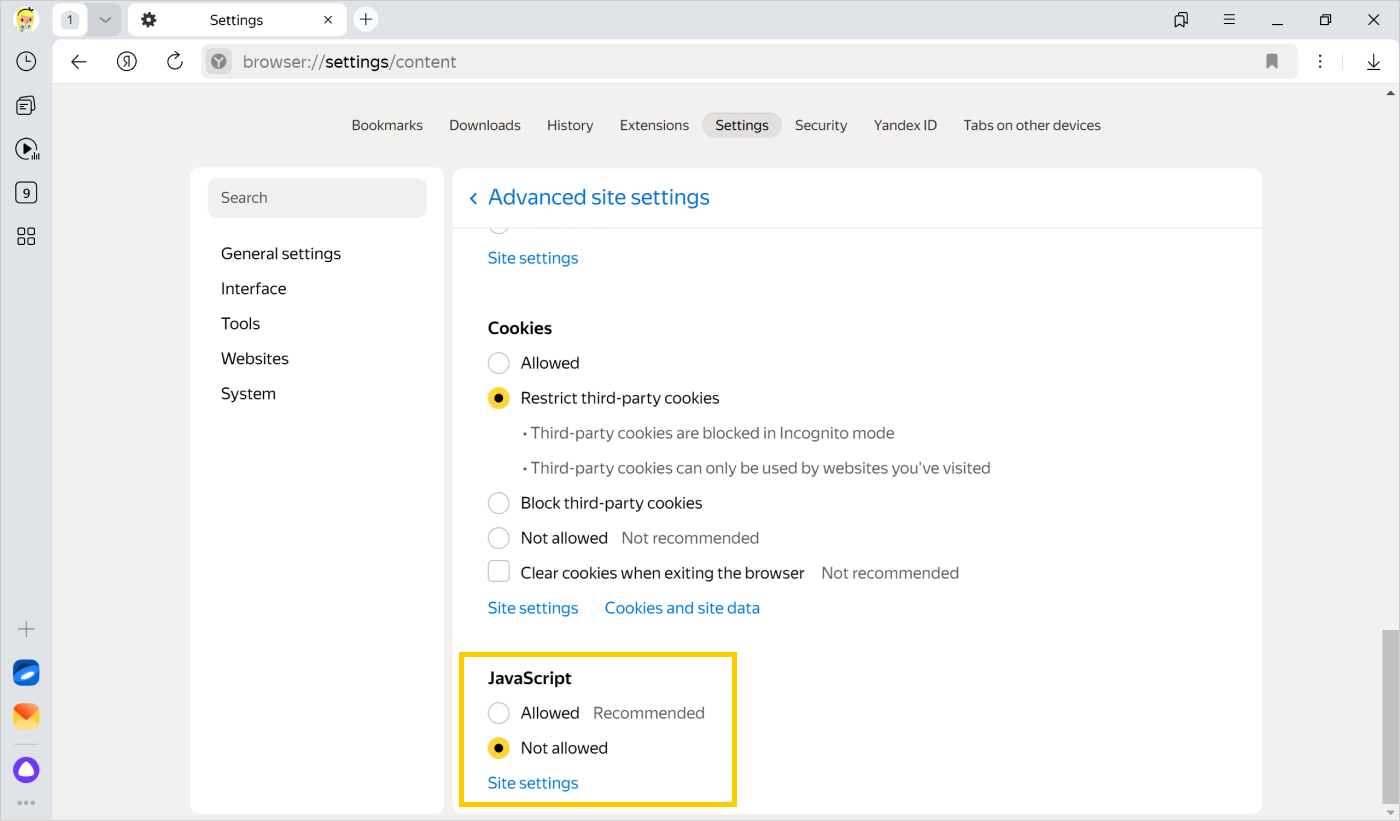
Click → Settings → Websites.
-
Scroll down the page and click Advanced site settings.
-
In the JavaScript section, select Not allowed.
You can enter search queries in the address bar and Yandex Browser will understand what you need.